Cannot run youtrack-windows Docker image

Greetings.
We are trying to move from a .MSI installation to a Docker installation of YouTrack on Windows, all without any experience with Docker and following the official YouTrack documentation at https://www.jetbrains.com/help/youtrack/server/youtrack-docker.html.
We followed these steps:
- Install and configure Docker CE by executing the script provided by Microsoft (https://learn.microsoft.com/en-us/virtualization/windowscontainers/quick-start/set-up-environment?tabs=dockerce#windows-server-2)
- Pull the latest YouTrack Windows image (
docker pull jetbrains/youtrack-windows:2025.2.94372) - Create the required directories
- Execute
docker run …
This fails with the following error message:
docker: Error response from daemon: hcs::CreateComputeSystem 4d40943c299446100022a0eb80c7606e911ce1316678e72364210a2b0ee1a059: The container operating system does not match the host operating system.This is the version of the container OS according to docker inspect:
        "Architecture": "amd64",
        "Os": "windows",
        "OsVersion": "10.0.17763.5696",
We tried on the following machines:
- Windows Server 2022 - version 10.0.20348.0
- Windows Server 2025 - version 10.0.26100.0
Any suggestions?
Please sign in to leave a comment.
Hello,
Stan from YouTrack Support here, I'll be glad to assist you!
Thank you for sharing the details about your server and the
docker inspectoutput. These lead us to the likely cause of the issue you experience.According to MS documentation, Windows Server containers are blocked from starting when the build number between the container host and the container image are different. However, this limitation can be overcome by running the container in hyper-v isolation mode.
Please try starting the container with hyper-v isolation. You just need to add the
--isolation=hypervflag to the Docker command:If the issue persists, please submit a ticket to us at https://youtrack-support.jetbrains.com/hc/en-us/requests/new, since we'll need to review the full logs from your installation it's best to not share those publicly.
Have a nice day!
Thank you for your response.
On both servers, we have:
Enable-WindowsOptionalFeature -Online -FeatureName Microsoft-Hyper-V--isolation=hypervparameterHowever the container still fails to start, though with a different error message:
I tried looking for some logs to try to understand what this “required feature” is, but I found none.
Hi!
Thank you for the follow-up. I'll continue testing and checking the issue this week, but a few variables outside of the YouTrack installation might affect the running of a Windows container. To help me troubleshoot this further, please perform the actions below and share the outcomes:
Enable-WindowsOptionalFeature -Online -FeatureName containers –Allto ensure the containers feature is enabled along with hyper-v.ltsc2019. You can find the step-by-step instructions with necessary commands here (the examples in the article use tagltsc2022, please change it toltsc2019). It's a lightweight container provided by Microsoft that is great for running tests like this. Please share the output if you can run this container or if you face any errors. This will indicate if the issue is specific to the YouTrack container.bcdedit. Runbcdedit /set hypervisorlaunchtype Autoto have it auto-launched at boot.Please also let me know if the Windows Server that runs Docker is a hardware server, a virtual machine on your own hardware server, or a Windows Server running in Azure/AWS.
If it's a hardware server, please run systeminfo.exe and send me the output showing if virtualization is enabled in firmware.
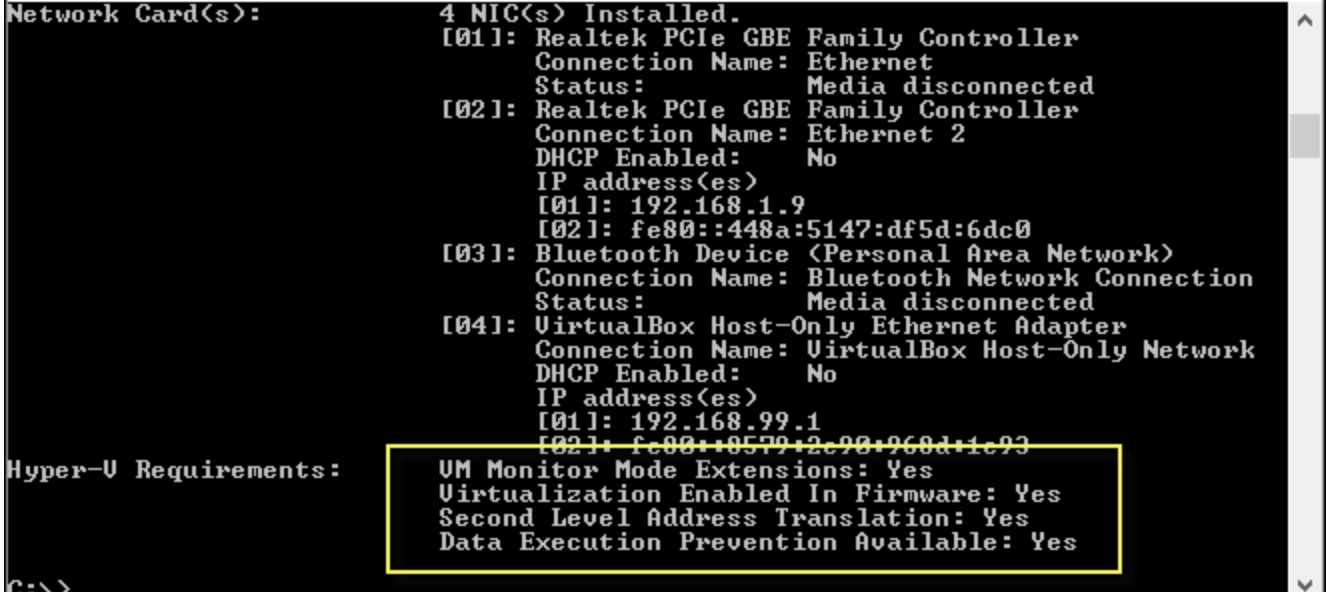
If the machine is running inside Azure/AWS, please run the command below and send me the output. This'll help to determine if your VM supports nested virtualization.
(Get-ComputerInfo).HyperVRequirementVirtualizationFirmwareEnabledLooking forward to hearing back from you. Have a great day!
Hello.
It is definitely a Docker issue (with a reminder we have no prior experience with Docker).
As for your questions:
bceditis not availableBoth machines run in virtualized environments:
In both cases:
systeminfo.exeoutputs this with regards to Hyper-V:Hyper-V Requirements: A hypervisor has been detected. Features required for Hyper-V will not be displayed.(Get-ComputerInfo).HyperVRequirementVirtualizationFirmwareEnabledoutputs nothingI tried looking for some information, and it could be a problem with nested virtualization not being supported.
Hello!
Thank you for sharing the details. You are correct, it's exceedingly likely that the issue is related to nested virtualization.
As the problem originates outside of YouTrack, I can't provide definitive instructions to resolve it. Searching the knowledge bases for Broadcom (VMware owner) and Redhat (primary dev for KVM), I found the articles below, which I hope will help in determining the next steps:
Feel free to reach out anytime if you have any questions. Have a great day!
Thank you very much for your attention and unwarranted research. We will investigate further on our own.